
Activity Log
Yes, the house and every room in it
Script 360 doesn’t just build a list of the locations in your script. It expands them to include their sublocations. An exterior? An interior? The library or the kitchen, the study or the bedroom? You bet. They are all tied to the same main location, so you can sketch every one of them and they stay together, giving readers a full picture of the places in your story.
Let our AI find them for you
Open a screenplay and go to Locations in the Script Elements widget. Press Find the major locations.
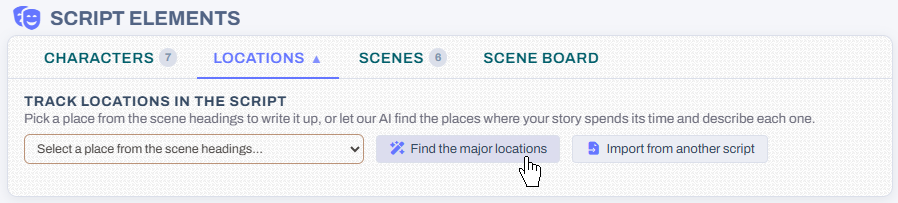
Our AI reads the whole script and builds a list of the main places your story spends its time. It knows that EXT. BOB’S HOUSE, BOB’S HOUSE - KITCHEN and BOB’S HOUSE - STUDY are all Bob’s house, so every scene set there is gathered under one location. You see the price before anything is done.

When your locations are in, we offer to describe their views. For each location our AI sets up the sublocations your scene headings call for, the outside, the inside and each room, and writes a short description of every one from the scenes that happen there. They are tied together and ready to sketch. It costs about a credit a location.
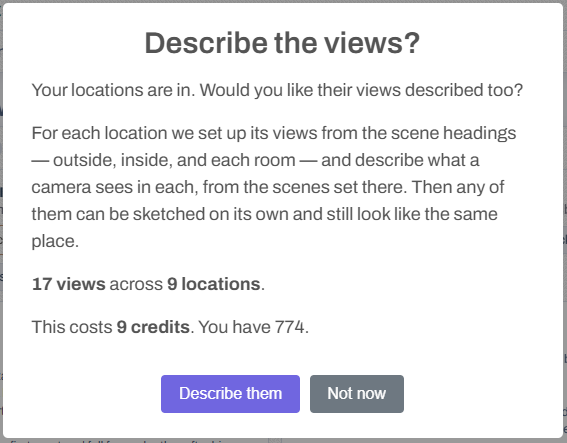
Said “Not now”? You can do it any time with the Add sublocation descriptions button on the Locations tab.

Sketch each one
Open a location and you will find its sublocations listed under Views, each with its own description, ready to change if you like. Press Sketch beside any of them. Each sketch is 4 credits.
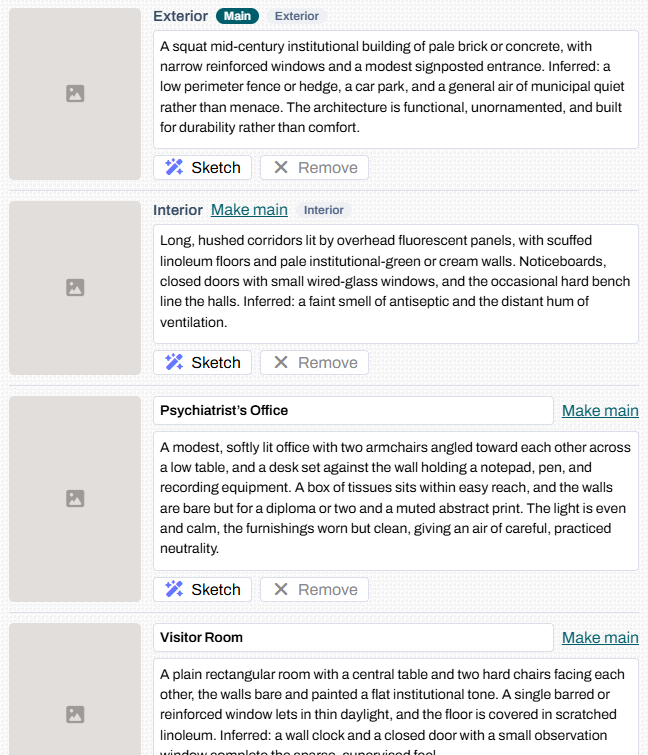
The rooms are drawn from the location’s main picture, so the office looks like it belongs in the same building, not an office from somewhere else.
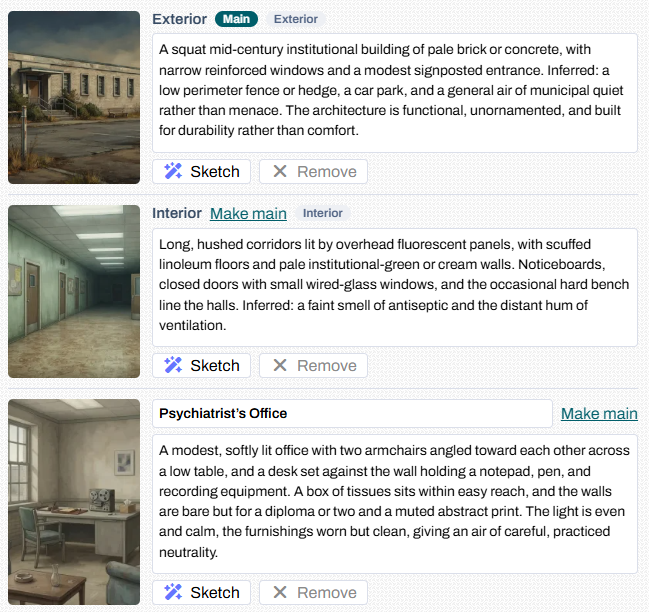
Want a different picture to lead? Press Make main on it. Missing a room? Use Add a view to add it yourself.
On the location’s card, the pictures sit together, the main one large and the rooms beside it, each with its name. Click any of them to see them all full size.
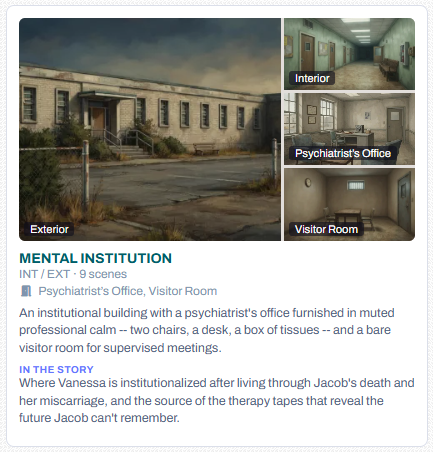
Pick almost any place from your script
You don’t have to wait for the AI to find a place. The Select a place from the scene headings menu on the Locations tab lists every place in your script that isn’t a location yet. Pick one to expand it, describe it in your own words, and add a sketch.
Then use them in your scenes
Once a location is sketched, it can be used to stage your scene pictures. A scene set in the kitchen is drawn in the kitchen, not out in front of the house: the scene picture uses the room the heading names, then the inside or outside, and the main picture if there is nothing closer. Here is how scene pictures work.
Where to find it
Open any screenplay and look at the Locations tab in the Script Elements widget. Locations are also in the editor’s sidebar, beside Characters and Scenes.
Loading content...
Loading screenplays…
Loading members…
Loading coverage…
Loading posts…
Education
Articles on the craft and business of screenwriting, from Script 360 and writers who know the work.
Loading articles…
Attachments/Media
The tabs in this section are currently hidden. Click on any of the tab titles above to open one.
| Title | Size | Uploaded | Actions |
|---|
No Attachments
No Images
No Videos
No Audio Files
Series / World
For a TV series, or a film and its sequels: keep the characters and locations that recur here, and every script you add to the folder can bring them in.
The tabs in this section are currently hidden. Click on any of the tab titles above to open one.
Scripts
Attachments/Media
The tabs in this section are currently hidden. Click on any of the tab titles above to open one.
| Title | Size | Uploaded | Actions |
|---|
No Attachments
No Images
No Videos
No Audio Files