
Activity Log
To bring in a screenplay you have already written…
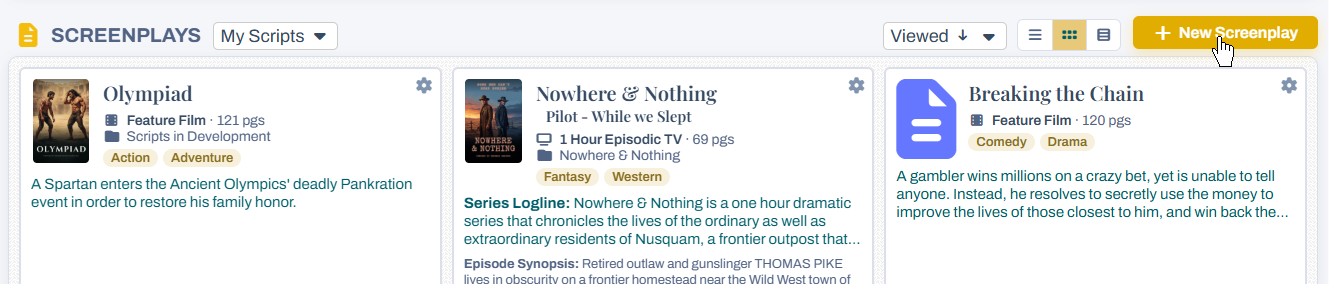
First, log in. On your Dashboard, find the Screenplays section and click the yellow New Screenplay button at its top right:
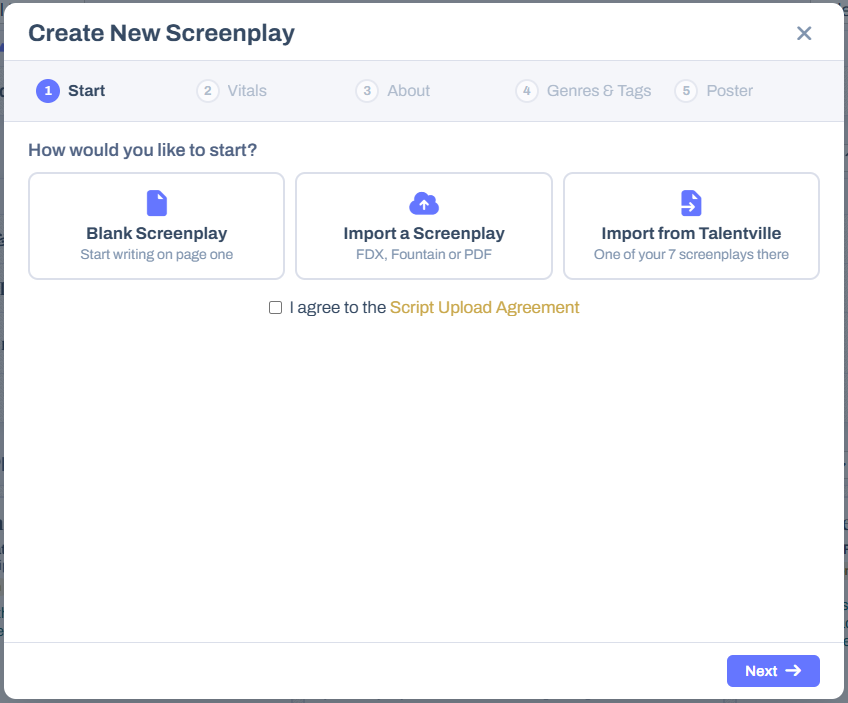
That opens the Create New Screenplay popup. It works in five short steps, shown across the top — Start, Vitals, About, Genres & Tags and Poster — and the first thing it asks is how you would like to start:
Choose how to start
The three buttons on the Start step decide what kind of screenplay you are creating:
- Blank Screenplay — a fresh, empty script, for when you want to start writing on page one in our editor. See What if I want to start a new, blank script?
- Import a Screenplay — upload a script you already have, as a Final Draft (FDX), Fountain or PDF file. Use this when you want to keep working on it in our editor, show it in the Script Library, or have our AI read and analyze it.
- Import from Talentville — copy over a screenplay you uploaded to Talentville.com. This button only appears if you are a Talentville member with screenplays there.
Uploading a file
Click Import a Screenplay and a dashed box appears underneath. Click in it to choose the file from your computer, or just drag the file from your desktop and drop it there. It must be an FDX, Fountain or PDF file — FDX gives the most complete import. See What script formats can I import? for the differences.
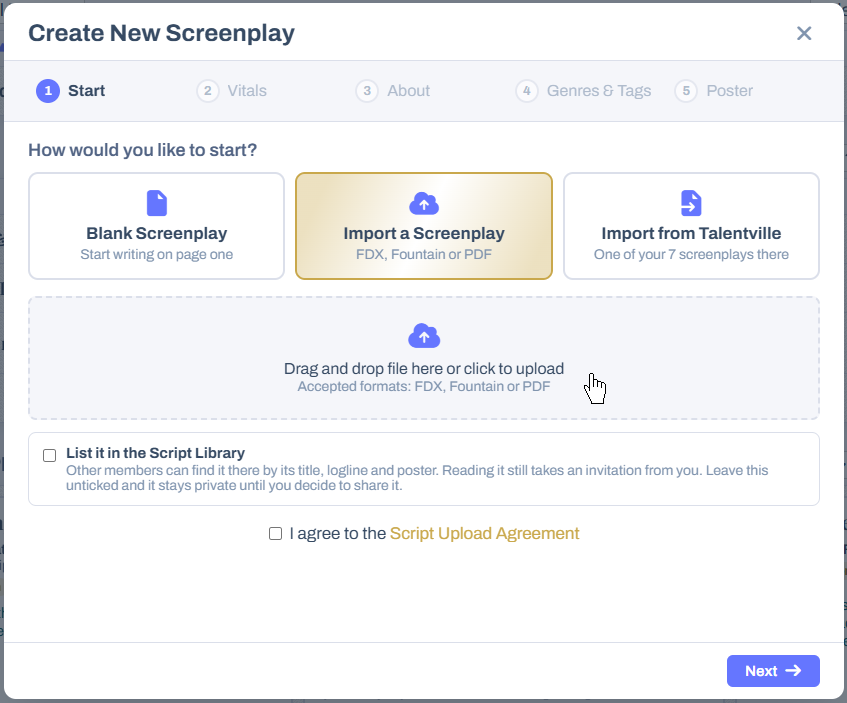
Below the upload box is List it in the Script Library. Tick it if you want other members to be able to find your screenplay there by its title, logline and poster — reading the script itself still takes an invitation from you. Leave it unticked and the screenplay stays private until you decide to share it. Listing in the Library is part of the paid memberships; on other memberships you will see a note that your screenplay stays private instead.
Finally, tick I agree to the Script Upload Agreement and click Next.
Importing from Talentville
Click Import from Talentville and a list of your Talentville screenplays appears, with the type and page count of each. A screenplay you already have here is marked Already in your screenplays, so you do not bring it over twice by mistake.
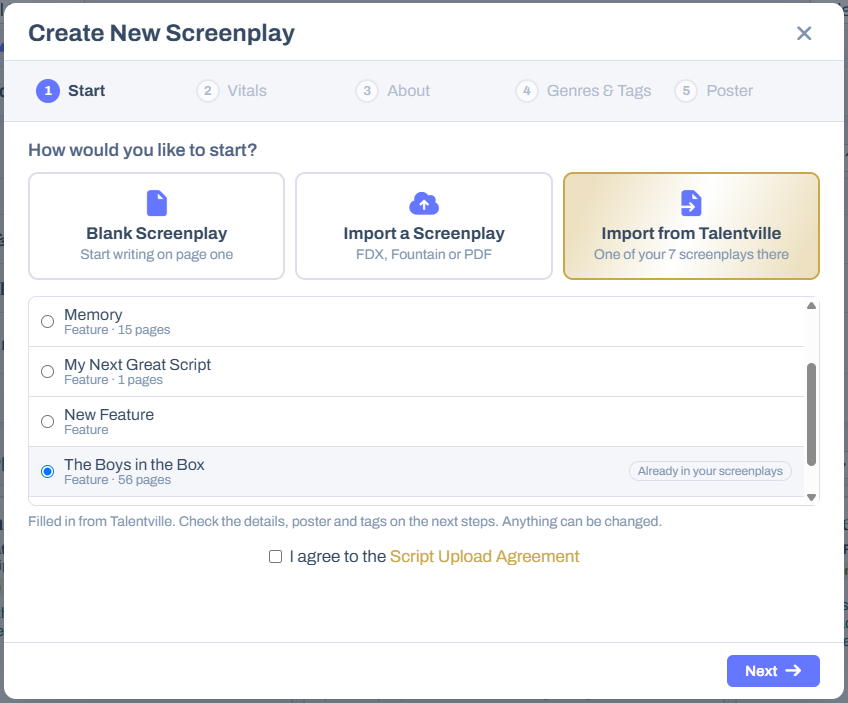
Choose one, and its title, logline, genres, tags and poster are filled in for you on the steps that follow. Check them over and change anything you like. Tick I agree to the Script Upload Agreement and click Next. There is more about this in Can I import my scripts from Talentville.com?
The details about your screenplay
The next four steps describe your screenplay. Only a few things are required; everything else can be added or changed later.
- Vitals — the Script Type (Feature Film, 1 Hour Episodic TV and so on) and the Title are required. You can also choose a Folder to file it in, add a Log Line, and — if you are not its only writer — untick I am the sole author and enter the writers in credit order. A TV script also gets an episode title and summary.
- About — an optional Story Synopsis and Author’s Notes, shown with the screenplay for anyone who finds it.
- Genres & Tags — choose at least one genre (up to three). Tags are optional, up to ten: pick popular ones or type your own.
- Poster — upload your own image or choose one of ours. Not ready to choose? Skip it: once your screenplay is created you can add a poster at any time, or design one with AI from the One Sheet tab on its page.
From the Vitals step on, a Create Script button sits beside Next, so you do not have to go through every step. If something required is still missing — a genre, say — the popup takes you to that step and tells you what it needs.
After you click Create Script
An uploaded or imported screenplay is converted so it is fully editable, and then laid out page by page to work out its length and where each scene falls. You will see a Preparing your screenplay message while that happens — a few moments on a long script.
Then you are taken to your new screenplay’s summary page:
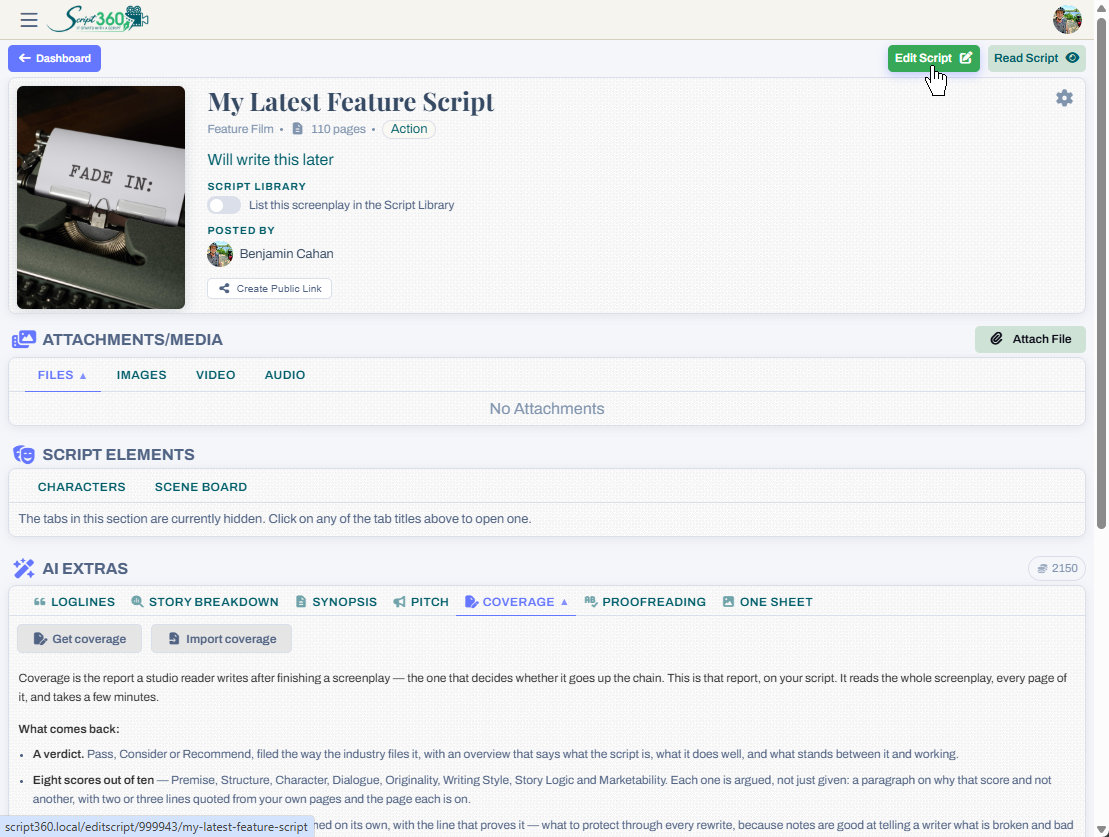
From here you can:
- Click Edit Script to open it in our editor and carry on writing, or Read Script to read it.
- Attach files, images, video and audio under Attachments/Media.
- List it in the Script Library, or Create Public Link to send it to someone who is not a member.
- Have our AI work on it from the AI Extras section — loglines, a story breakdown, a synopsis, a pitch, full coverage, proofreading and a one-sheet poster. See How does Script 360 use AI?
When you return to the Dashboard
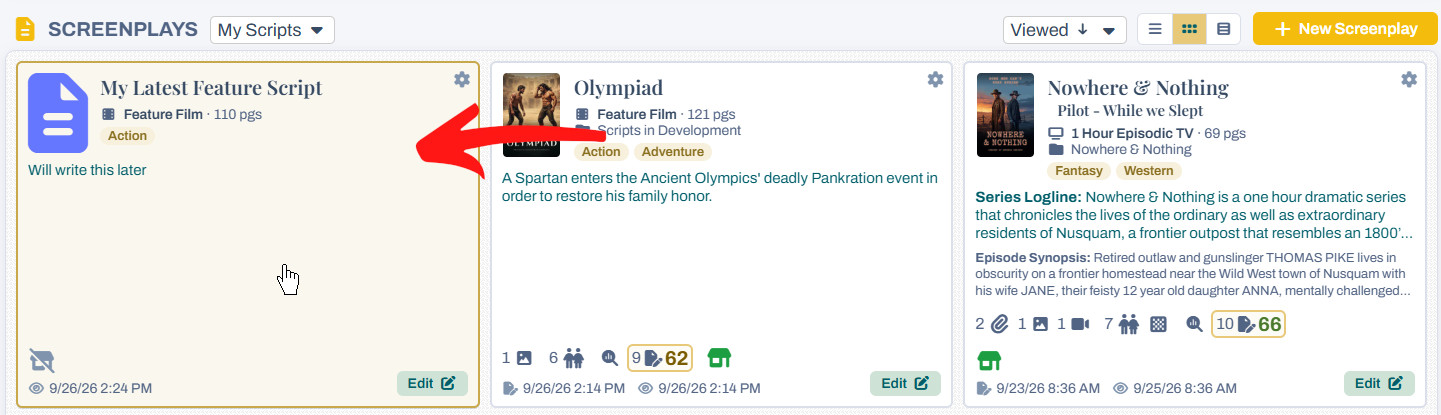
You will find the new screenplay in your Screenplays listing, alongside the rest of your scripts. Click its card to go back to its summary page, or its Edit button to go straight into the editor:
Loading content...
Loading screenplays…
Loading members…
Loading coverage…
Loading posts…
Education
Articles on the craft and business of screenwriting, from Script 360 and writers who know the work.
Loading articles…
Attachments/Media
The tabs in this section are currently hidden. Click on any of the tab titles above to open one.
| Title | Size | Uploaded | Actions |
|---|
No Attachments
No Images
No Videos
No Audio Files
Series / World
For a TV series, or a film and its sequels: keep the characters and locations that recur here, and every script you add to the folder can bring them in.
The tabs in this section are currently hidden. Click on any of the tab titles above to open one.
Scripts
Attachments/Media
The tabs in this section are currently hidden. Click on any of the tab titles above to open one.
| Title | Size | Uploaded | Actions |
|---|
No Attachments
No Images
No Videos
No Audio Files