
Activity Log
Loading content...
Alter Margins with the Ruler
For when you want to change how a paragraph is laid out
The Ruler lets you alter left and right margins of any paragraph
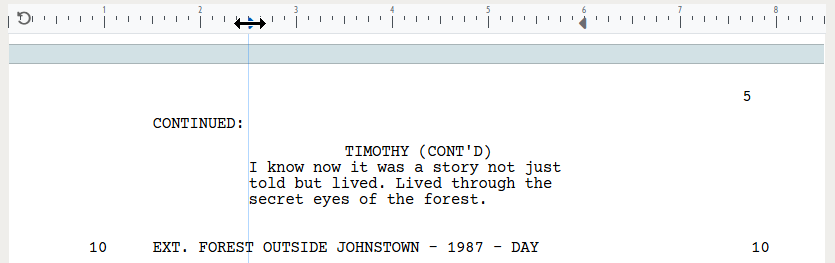
There may be times where you want to change the margins of a paragraph manually - to make an extra line with a word or two smaller, or in some circumstances where you want something a bit different. This is accomplished using the Ruler, which can be shown at the top of the editor:
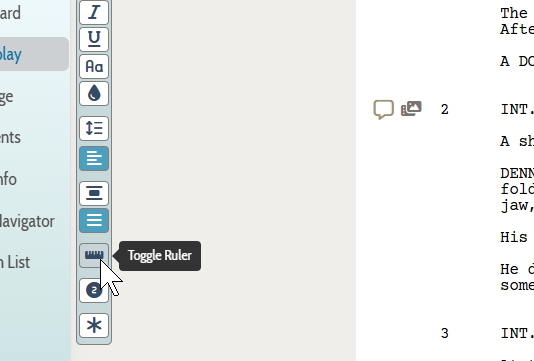
To show or hide the ruler, click on the small ruler icon in the icon bar to the left of the screenplay:
When the ruler is displayed, the left and right margin triangles will show the margins for the paragraph currently active (with the blinking cursor). If there is a selection range, it will reflext the margins for the paragraph containing the beginning of the range.
To alter the margins for that paragraph, click your mouse on the desired triangle (left or right) and drag the triangle to a new position. Release the mouse and the paragraph's margins change immediately.
To reset to the default margins
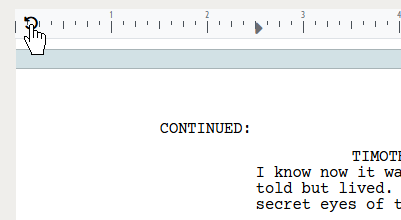
If you have changed the margins of a paragraph, you can easily return them to the default for the type of paragraph (i.e. Character, Action, Transition etc.) by clicking on the grey reset icon located at the left edge of the ruler:
Loading screenplays…
Loading members…
Loading coverage…
Loading posts…
Education
Articles on the craft and business of screenwriting, from Script 360 and writers who know the work.
Loading articles…
Attachments/Media
The tabs in this section are currently hidden. Click on any of the tab titles above to open one.
| Title | Size | Uploaded | Actions |
|---|
No Attachments
No Images
No Videos
No Audio Files
Scripts
Attachments/Media
The tabs in this section are currently hidden. Click on any of the tab titles above to open one.
| Title | Size | Uploaded | Actions |
|---|
No Attachments
No Images
No Videos
No Audio Files